ClickFlow
SEE DEMOGET STARTED

ClickFlow walkthrough

Guest Review Links

Your client comments like it's a Google Doc — zero accounts, zero exports.

Guest Review Links let anyone review a ClickFlow draft without an account. You send one tokenized link; your client highlights text and leaves Google-Docs-style comments on a frozen snapshot of the draft. Every comment lands inside your editor as a highlight, where you resolve it — and you can revoke the link at any time.

Your browser doesn't support embedded video.
ClickFlow Guest Review Links — 27-second walkthrough

One link, no login

Guests never make an account or take a seat. They open the link and the draft is right there — view and comment only.

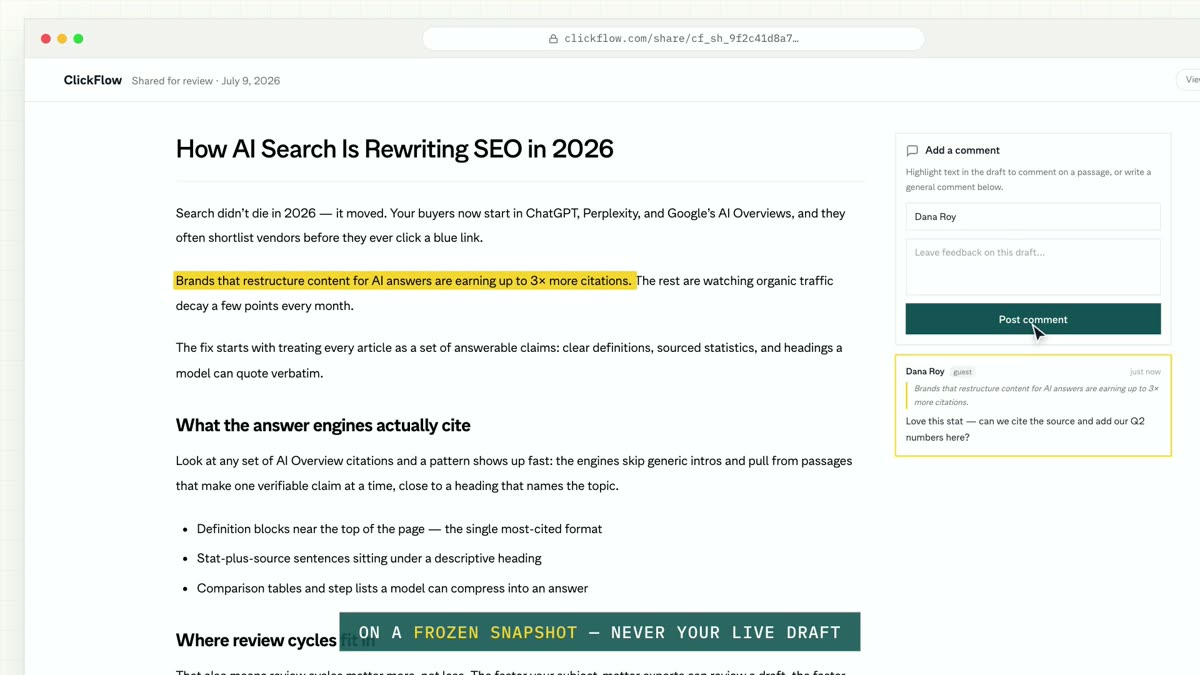
A frozen snapshot

The link pins the draft exactly as you shared it, so feedback never lands on a version that no longer exists — even if your pipeline keeps optimizing.

Feedback in your editor

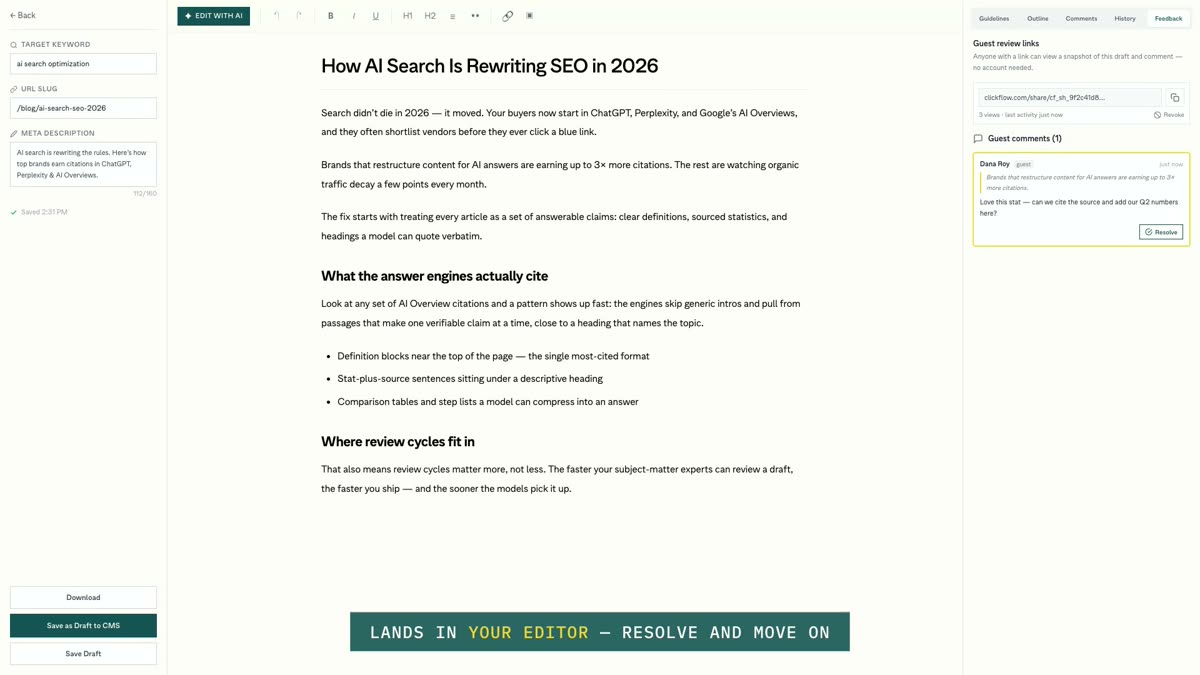
Guest comments appear as highlights inside your live editor with resolve/reopen — no email threads, no screenshots into Slack.

Step 1 · Share

Send your client one link

From the editor's Feedback tab, create a review link and send it. That's the client's whole setup: no invite, no password, no seat. One active link per draft, server-enforced.

The page they open is a clean, read-only view of the draft — marked “View & comment only.”
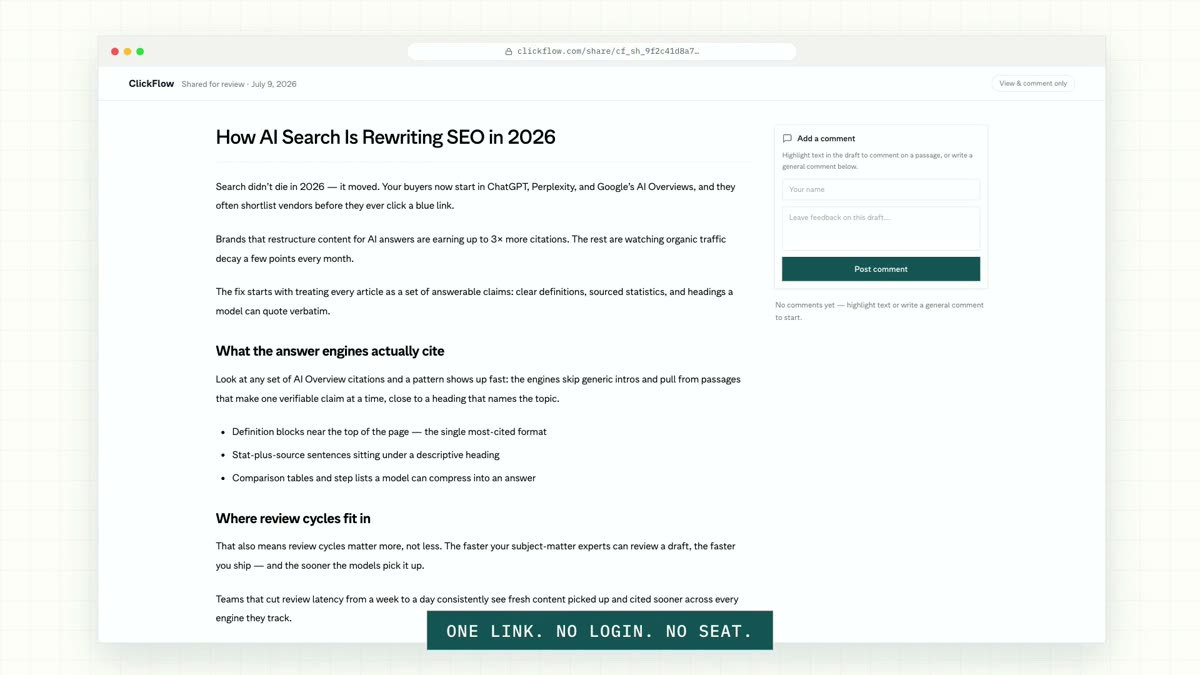
The guest review page: a clean article view with a comment panel, no login required

Step 2 · Comment

They highlight and comment — like a doc

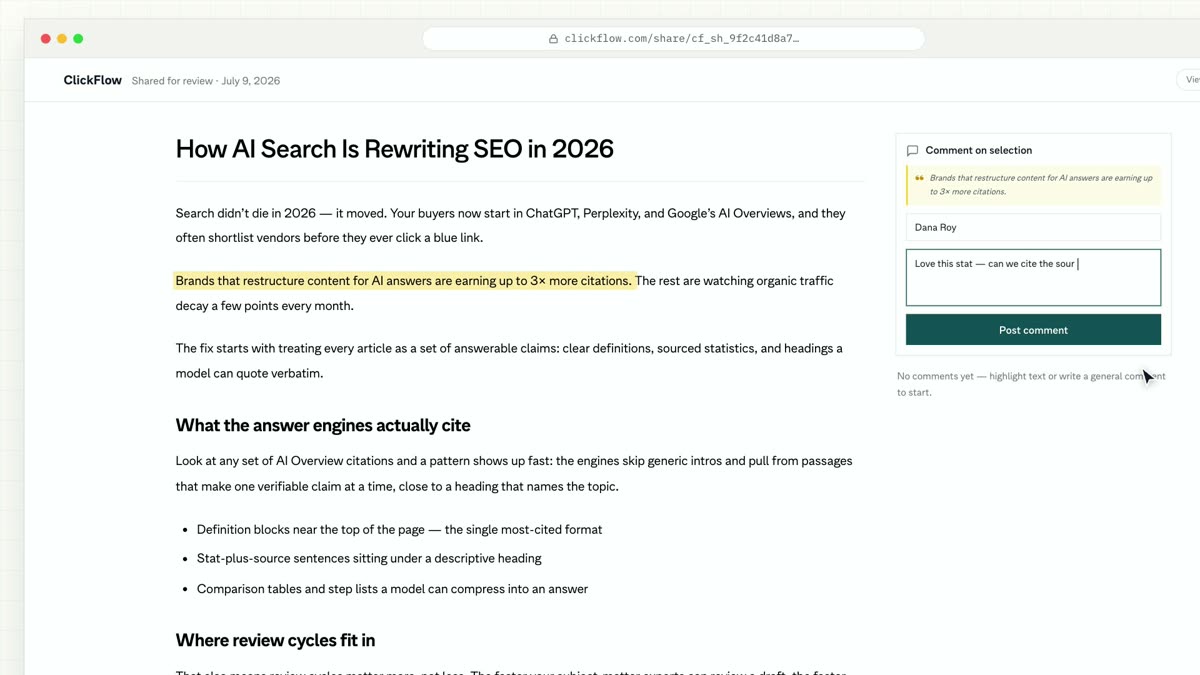
Your client selects any passage and a Comment button appears. They type a name once, write their note, and post. General comments work too.

The quoted text is verified server-side against the snapshot, so comments can't be anchored to words that were never there.

A guest highlighting a sentence and writing a comment in the composer

Step 3 · Anchored

Comments pin to the exact sentence

Each comment appears in the margin, anchored to its highlighted passage — visible live to other guests on the same link. Reviewers see each other's feedback in real time.

A posted guest comment card anchored to a highlighted sentence

Step 4 · Resolve

It lands in your editor. Resolve and move on.

Back in ClickFlow, the Feedback tab shows a badge with unseen comments, and guest highlights are painted onto your live editor. Click a highlight to jump to its comment, resolve it, and keep shipping. Revoke the link anytime — guests lose access immediately.

The ClickFlow editor's Feedback panel with a guest comment and Resolve button
0
accounts or seats needed
1
active link per draft, enforced
256-bit
share link tokens
4
shareable types: articles, pages, templates, reports

Questions

No. Guests open the link and comment directly — they type a name with their first comment and that's it. No signup, no seat, no access to anything else in your workspace.

Ship the draft, not the email thread

Put client approval inside the pipeline

Start free →
ClickFlowclickflow.com
ClickFlow
HomeDocsPrivacyTerms